
Share This Article
OnlyFans security on shared hardware starts with one assumption: another person can physically hold the phone, tablet, or laptop you use. Whether that is a partner, a roommate, a coworker, or a family member, shared hardware removes the privacy a personal device normally provides. BestOnlyFans treats shared-device access as a configuration problem rather than a trust problem, because the fixes are technical and repeatable. BestOnlyFans refreshes its rankings every month.
The goal is to separate your session, your payment data, and your notifications from everything else on that device. The approach below stays consistent whether you are setting up one tablet or a whole household of devices. The BestOnlyFans method stays consistent across updates.

Risk Assessment for Shared Device Scenarios
A tablet in a living room used by adults has a different profile from a work laptop that syncs to a corporate account. The first step is naming which category your situation falls into, because the controls you apply depend on who else touches the hardware and how often.
- Family household with minors: the highest exposure category, since children explore settings, tap through notifications, and may share what they see.
- Partner-shared devices: lower external risk but higher chance of casual, unintentional access during daily use.
- Workplace or school equipment: managed devices may log activity or restrict installations, so browser-level isolation matters more than app-level controls.
- Travel or public computer access: the shortest exposure window, but the least control over what software is already running.
Someone on a managed work laptop should focus on browser isolation and session termination, while someone sharing a personal tablet with a partner should focus on app locks and notification settings.
Authentication Layering Beyond Passwords
If the device is already open, a saved password or autofill entry removes the only barrier between another user and your account. Layering authentication rebuilds that barrier in several places at once.
- Use a unique, strong password for OnlyFans that you have not reused on any other service.
- Secure the email account tied to the login with its own separate, strong password.
- Enable two-factor authentication on that email account, not only on the platform login.
- Turn on biometric or PIN locks for the device and for the OnlyFans app where the operating system supports it.
- Rotate the OnlyFans password on a fixed schedule, especially after any period of heavy device sharing.
A second factor tied to your phone stops anyone who only has your password, even on a device you do not own.
Warning: if the email account connected to your OnlyFans login shares a password with anything else, treat the whole chain as compromised and change it today.
Browser and App Isolation Techniques
Isolation keeps your OnlyFans session in its own container so it does not mix with the rest of the device’s browsing data. This matters most on shared computers where history, cookies, and autofill entries are visible to anyone who opens the browser.
- Dedicated browser profile: creates a separate space with its own cookies, history, and saved logins, isolated from the profile other people use.
- Private or incognito mode: reduces local traces during the session, but only if you fully close every window rather than minimizing them.
- Mobile app lock or a separate device user account: restricts who can open the app at all, independent of browser behavior.
- Disabling cross-site tracking: reduces the chance that recommendations or ads surface content related to your activity on other sites.
A dedicated profile is usually the strongest option because it survives across sessions and keeps your logins separate. Incognito mode is faster to set up but requires discipline, since a single forgotten tab leaves the session open.
Payment Data Protection on Shared Devices
A saved card in a browser can be used by anyone with access to that browser, and wallet balances can be spent without your knowledge.
- Never save card details in the browser, even when prompted after a purchase.
- Use prepaid or virtual cards so the underlying account number is not stored anywhere on the device.
- Disable wallet auto-reload so the balance does not refill automatically after a spend.
- Require authentication, such as a device PIN or biometric check, for every purchase.
- Review stored payment methods and wallet balances on a quarterly schedule.
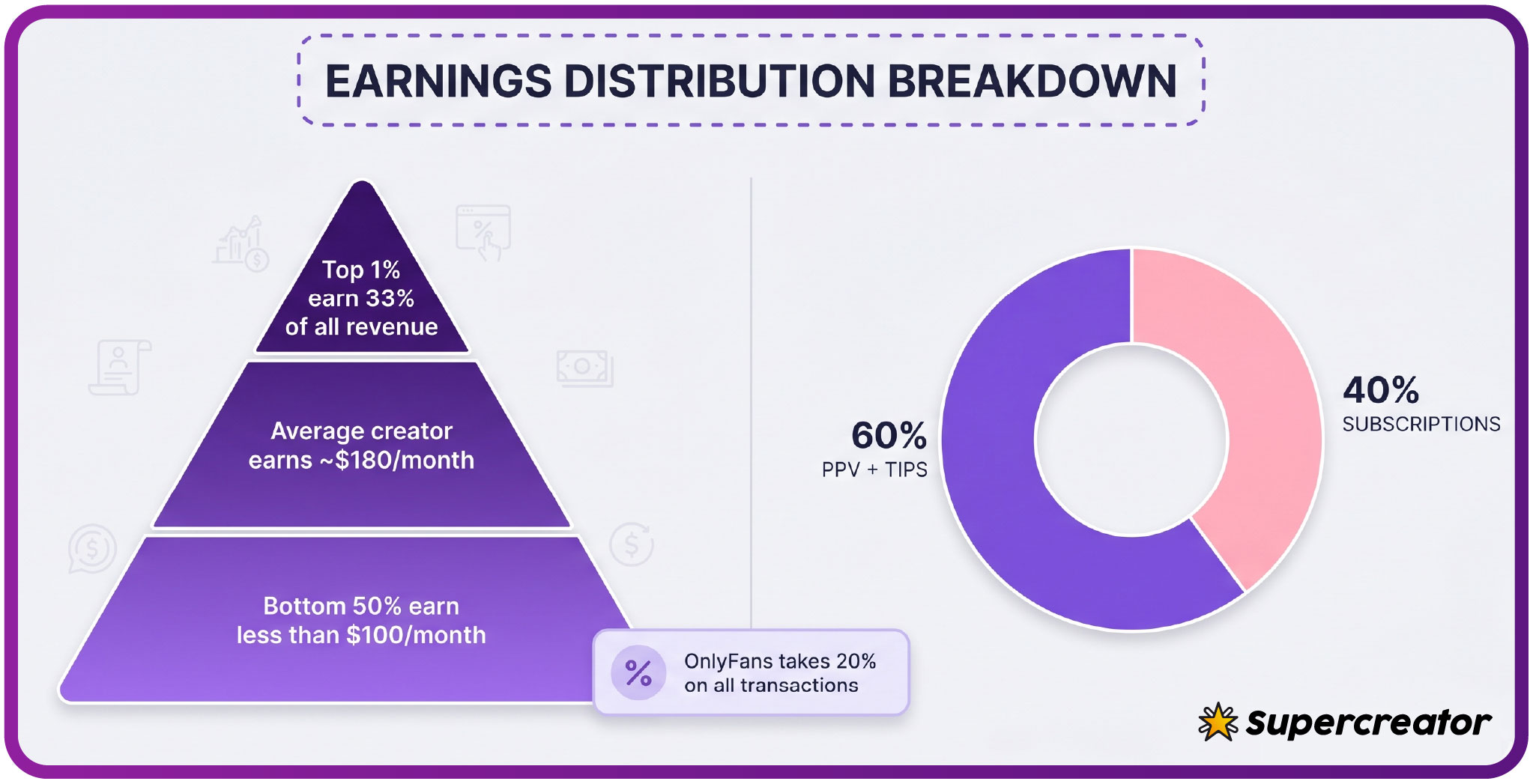
For context on what these charges look like, a card verification hold of $0.10 is refunded within days, PPV messages unlock up to $50, paid chat commonly runs $3 to $5 per message, and tips can reach $100. Base subscriptions range from $4.99 to $49.99, with most falling between $4.99 and $15.
Notification and History Management
A lock-screen alert, an autofill suggestion, or a browser history entry can reveal account activity without anyone opening the app directly.
| Exposure Vector | Prevention Method | Verification Step |
|---|---|---|
| Push notifications on lock screen | Disable OnlyFans push alerts or set them to hide content previews | Trigger a test notification and confirm nothing appears on the lock screen |
| Email notifications in a shared inbox | Route platform emails to a private address or filter them out of the shared inbox | Check the shared inbox after a day and confirm no platform mail arrived |
| Browser history entries | Use a dedicated profile or private mode and clear history after each session | Open the shared browser history and confirm no matching entries remain |
| Search bar suggestions | Disable search and form autofill in the shared browser settings | Type the first few letters of a related term and confirm nothing is suggested |
| Saved passwords in the browser | Turn off password saving for the site or leave autofill disabled entirely | Open the login page and confirm no credentials populate automatically |
Verification matters because a setting changed in the wrong menu does nothing, and you only find out when something leaks.
Logout Protocols and Session Termination
Logging out is the single habit that prevents most shared-device problems, but only when done completely. Closing a browser tab is not the same as ending a session, and background processes on mobile can keep an app authenticated long after you stop looking at it.
Close every tab tied to the session, then open a fresh page and confirm the login form appears rather than your account. Some platforms keep a session token alive for convenience, which allows an account to reopen without a new login. That convenience is exactly the risk on shared hardware, and checking the active sessions list inside account settings matters after any device-sharing period.
Guides that rank the best onlyfans app options usually weigh session handling alongside messaging features, and that criterion deserves real weight on shared hardware.
Recovery Planning for Compromised Shared Access
Fast action limits what can be viewed, purchased, or downloaded, and it preserves a clear record of what happened.
- Change the OnlyFans password from a device you fully control, not from the shared hardware.
- Terminate all active sessions through account settings so any open login elsewhere is cut off.
- Verify recent charges, wallet transactions, and unlocked PPV messages against your own activity.
- Notify platform support with specific details: what was accessed, when, and from which shared device.
If payment methods were visible during the exposure, contact the card issuer as well. Unauthorized use of payment credentials falls under general fraud reporting guidance, and flagging it early usually limits liability.
Building a Household or Shared Environment Policy
A short, clear policy removes ambiguity and prevents the awkwardness of discovering someone else’s account by accident. The table below contrasts three common setups with respectful implementation tactics.
| Environment Type | Boundary Type | Implementation Approach |
|---|---|---|
| Adults-only family household | Separate user accounts on the device | Create individual logins so browser profiles, history, and app data stay divided |
| Partner co-use of one device | Shared device, private sessions | Agree that each person logs out fully and uses a dedicated browser profile |
| Roommate household | No shared logins, personal lock codes | Keep individual PINs and biometrics enrolled only for the device owner |
Written expectations remove guesswork. A one-line agreement that each person logs out and uses a separate profile covers most of the risk without requiring anyone to explain their activity.
Consistency is what makes a policy stick, so standardizing on the same tools across devices pays off. Decide which browser profile, lock method, and notification settings everyone will use, then apply them the same way on each shared piece of hardware.
FAQ
Can I use OnlyFans on a family tablet without leaving traces?
Use a dedicated browser profile or private mode, disable autofill and saved passwords, turn off push notifications, and log out completely after each session. Verify afterward by checking the shared browser’s history and the lock screen for anything related to your activity.
Does logging out of OnlyFans on browser also end the app session?
No. Browser and app sessions are tracked separately, so logging out on one does not sign you out on the other. End each one individually, and check the active sessions list in account settings if you are unsure whether an older login is still open somewhere.
What should I do if someone accidentally opens my OnlyFans account?
Change your password from a device you control, terminate all active sessions in account settings, and review recent charges and wallet activity. Then fix the specific gap that allowed the access, such as a saved password or an open tab.
Are biometric locks sufficient protection for the OnlyFans mobile app?
A biometric lock stops someone from opening the app on that device, but it does not stop a login from another device using your password. Pair it with two-factor authentication on the account itself, and review active sessions regularly to catch any login you did not start.